


Edit a Landing Page Without Code: Click and Say What Should Change
In DivineCode, click a spot on your landing page and describe the change. The AI changes exactly that spot, and the rest of the page stays as it is.

An AI builds a landing page in a few minutes. Then the real work begins: the headline should be bigger, the button blue, a sentence is missing. Until now, this meant describing the entire page to the AI again or searching the HTML code for the right spot. In DivineCode, you click the spot and say what should be different.
1. Open the page in DivineCode
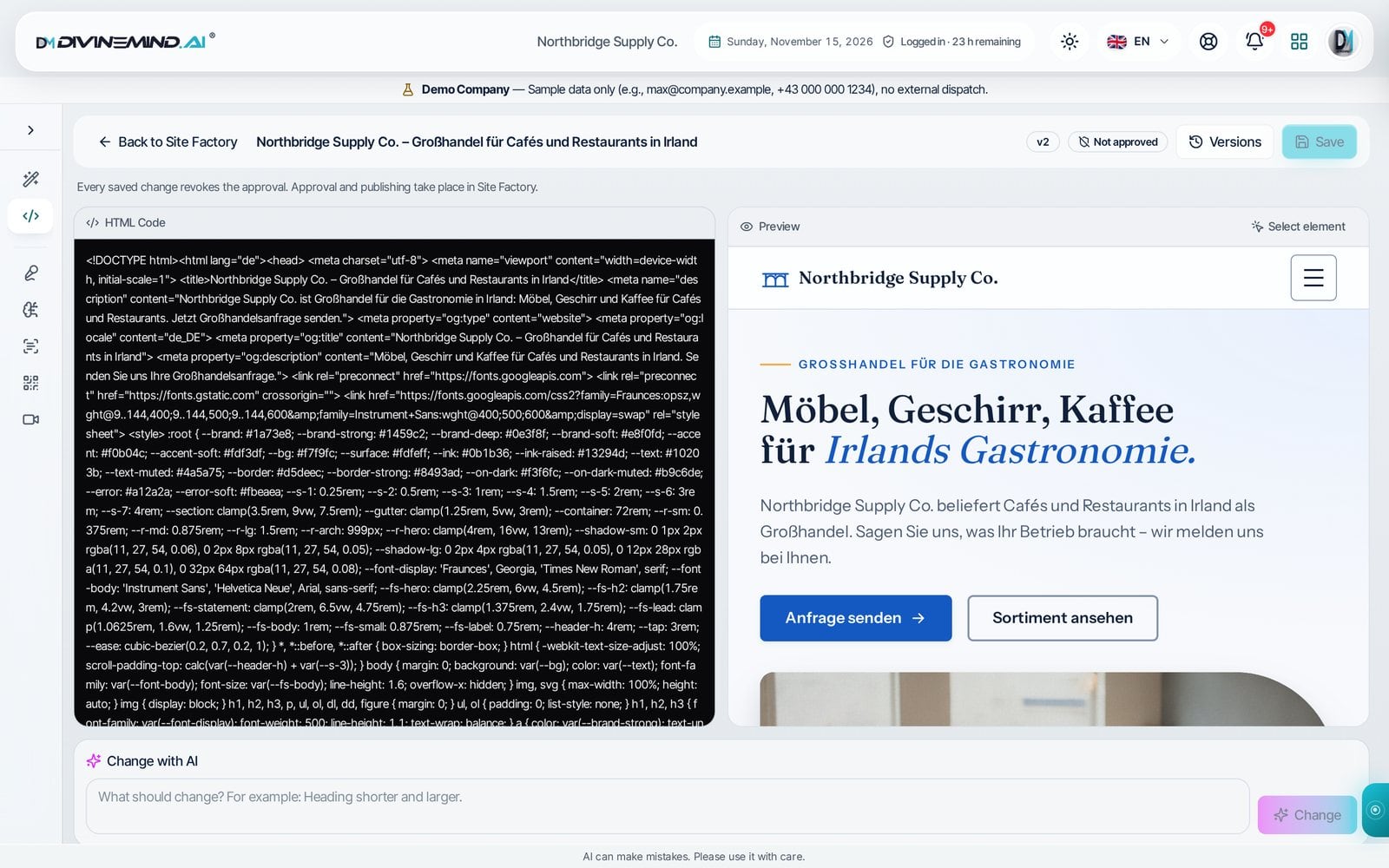
In the Site Factory, open the page with “Open in DivineCode”. The HTML code is on the left, the preview on the right. If you don't need the code, you can work only in the preview.
2. Click the spot
Tap “Select element” and then tap the spot in the preview that you want to change. It is highlighted, and the top shows what you have selected. If you only selected a single word, “Parent element” expands the selection step by step, for example up to the entire headline.

3. Say what should be different
Write in one sentence what should change, for example “Make it bigger and dark blue”, and tap “Apply”. The AI changes only this element. Texts, images and sections next to it remain unchanged.

4. Review and save
The preview shows the result immediately. If it looks right, save it. Every saved state becomes a version, and an earlier state can be restored with one click. Without a selection, describe a change for the entire page under “Edit with AI”.

Why nothing goes wrong
- Approval is removed as soon as you save. Online, only what was reviewed and approved after the last change goes live.
- No change overwrites another. If someone has changed the page in the meantime, DivineCode asks you to reload.
- A click only selects. While selecting, the page's scripts do not run, so a click on a button triggers nothing.
- Legal links are added automatically. Privacy policy, legal notice and terms from your company profile appear automatically in the footer. Without a link to the privacy policy, no page is published.
For agencies
If an agency works as a partner in your company, it builds pages and edits its own pages in DivineCode just as you do. It may publish only with your authorization, and you receive a notification for every publication.
DivineCode and the names of the elements are available in all 30 interface languages, on desktop and on mobile.
Tags
Frequently Asked Questions
DivineMind Team
The DivineMind.AI team shares insights on business automation, compliance, and AI.